

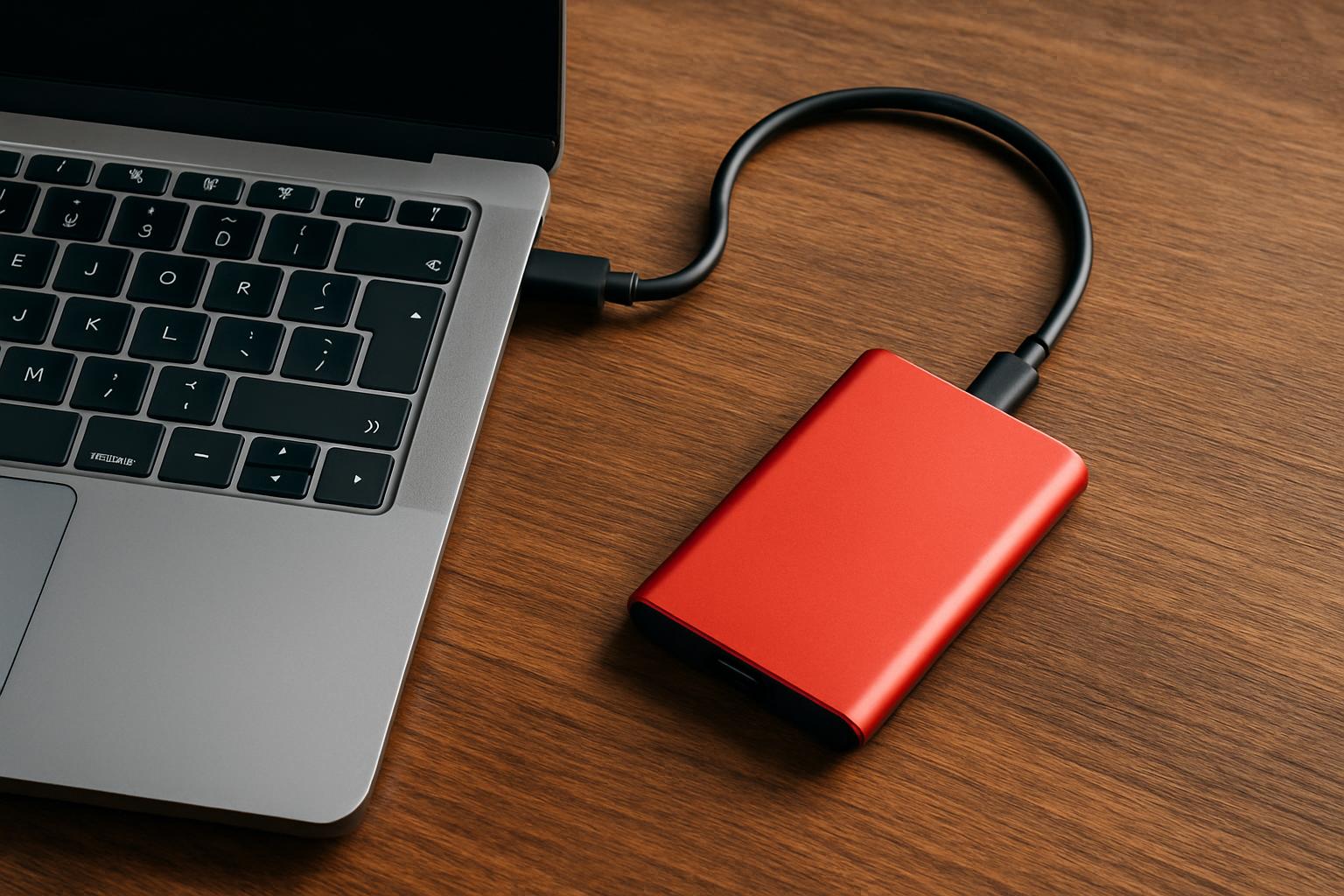

- A portable SSD is often the cheapest, fastest fix for full or soldered-down laptop storage in 2026.
- Most modern external SSDs deliver 1,000–2,000 MB/s over USB, while Thunderbolt 5 drives go much faster.
- Prices start around $80 for 1TB budget models and climb to several hundred dollars for high-capacity pro drives.
- Drive speed depends on matching ports—a 20Gbps USB 3.2 Gen 2×2 drive is wasted on Thunderbolt or USB4 Macs.
Why a Portable SSD Is the Cheapest Laptop Upgrade You Can Buy in 2026
If your laptop’s internal storage is full and soldered-down, a portable SSD is the fastest, cheapest fix in 2026 — a pocket-sized drive that plugs into USB-C and adds 1–4TB of fast storage in seconds. Today’s best models hit roughly 1,000–2,000 MB/s over USB, and a true Thunderbolt 5 drive like the LaCie Rugged SSD Pro5 reaches far higher. Prices range from about $80 for a 1TB budget pick to several hundred dollars for high-capacity pro drives, so picking the right one depends as much on your laptop’s ports as on the drive itself.
The catch most buyers miss is that the fastest drives need a matching port. A 20Gbps USB 3.2 Gen 2×2 drive is wasted on a Mac, because Apple devices, including those with Thunderbolt and USB4, top out at 10Gbps USB 3.2 Gen 2 for that standard. As B&H notes for SanDisk’s Pro drive, Apple devices, including those with Thunderbolt/USB4, do not support 20 Gb/s USB 3.2 Gen 2×2 and will be limited to 10 Gb/s USB 3.2 Gen 2. That single fact reshuffles which drive is “best” for you — and it’s why this guide weighs ports as heavily as raw specs.
This article focuses strictly on portable SSDs for laptops: bus-powered, pocketable drives you can carry between machines. We confirmed each product’s current price tier and headline specs against the manufacturer or a major retailer before recommending it. Prices shift constantly — storage pricing has been volatile through 2026 — so treat every figure here as an approximate range and confirm the current price before you check out. With that framing set, let’s look at the criteria that actually separate a great portable SSD from a mediocre one.
What should you look for in a portable SSD for a laptop?
The four things that matter most are interface speed, real-world sustained write performance, capacity per dollar, and durability — in that order for most laptop users. Interface comes first because it caps everything else: a USB 3.2 Gen 2 (10Gbps) drive maxes out around 1,050 MB/s, a Gen 2×2 (20Gbps) drive around 2,000 MB/s, and a Thunderbolt 5 drive far beyond that. Match the interface to the fastest port you actually own, not the one on the box.
Sustained write speed is the spec marketing hides. Most drives use a fast SLC cache that empties into slower flash once you copy enough data at once. In one independent test, the 2TB Crucial X10’s average sustained speed initially hovered above 985 MB/s but dropped to around 800 MB/s after reaching the 315GB mark, indicating an SLC or pseudo-SLC cache size of roughly 315GB. If you routinely dump 100GB+ video projects, cache behavior matters more than the headline number.
Durability, encryption, and warranty
For anyone working outside a desk, look for an IP rating and drop protection. Samsung’s rugged T7 Shield carries an IP65 rating with USB 3.2 Gen 2 and PCIe NVMe speeds up to 1,050/1,000 MB/s, plus a rugged design rated to endure a 9.8-foot drop. Hardware encryption is a second safety net: most premium drives, including the Samsung T9, support AES 256-bit hardware encryption, so you can lock the drive with a password and keep its contents private if it’s lost or stolen. Warranty length is the final tiebreaker — five years is now common, and worth having on a drive holding irreplaceable work.
Capacity and format
Buy more capacity than you think you need, because sustained write performance and price-per-gigabyte both tend to improve at 2TB versus 1TB. Out of the box, most drives ship in exFAT, which works across Windows, Mac, and many cameras and consoles, but you can reformat to NTFS (Windows) or APFS (Mac) if you only use one platform. The Samsung T9, for example, is preformatted in the exFAT file system and ready to work with any host right out of the box. Just remember reformatting erases the drive, so do it before you load files.
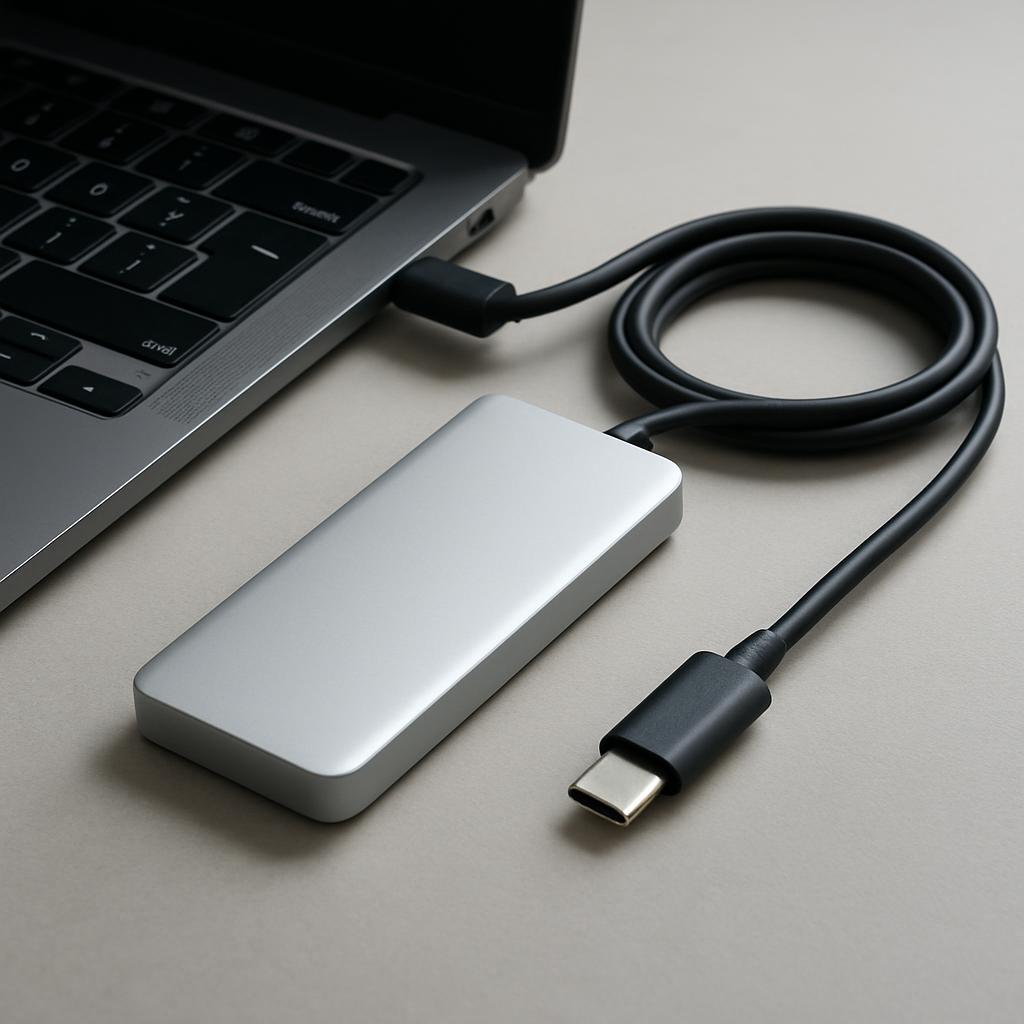
Which portable SSD is best for your specific laptop and workflow?
The best drive depends on your port and your job: get a 20Gbps drive only if you have a true USB 3.2 Gen 2×2 port, a Thunderbolt 5 drive only if you have a TB5 Mac, and a 10Gbps drive for everyone else. Most laptops and Macs fall into that last group, where a well-built 10Gbps drive delivers the same real-world speed for less money. Below are the scenarios that cover the vast majority of laptop owners.
For mainstream Windows laptops and budget-conscious buyers, a 10Gbps drive is the sweet spot. As Tom’s Hardware put it about Crucial’s faster drive, if, like most people, you have a system with Thunderbolt or 10Gb/s USB, there are drives that will perform similarly for less money. A Crucial X9 or X9 Pro, Samsung T7 Shield, or SanDisk Extreme covers this group well, all rated around 1,050 MB/s.
Best for Windows creators with a 20Gbps port
If your laptop or desktop genuinely has a USB 3.2 Gen 2×2 port, a 20Gbps drive doubles your throughput. The Crucial X10 Pro is the value champion here: it’s rated up to 2100MB/s read and 2000MB/s write, and Tom’s Hardware found it arguably the best drive you can buy for creators with a USB 3.2 2×2 port — but make good and sure your ecosystem has that port, because Thunderbolt 4 ports limit a single USB drive to 10 Gb/s, cutting performance in half. The Samsung T9 and SanDisk Extreme Pro V2 are equally fast alternatives in this class.
Best for Thunderbolt 5 Macs and 8K video
If you own a recent M4 Pro/Max MacBook Pro with Thunderbolt 5, nothing else comes close. The LaCie Rugged SSD Pro5 delivers read/write speeds up to 6,700MB/s and 5,300MB/s, powered by Thunderbolt 5. But it’s niche: Tom’s Hardware notes that for Windows or mixed-platform users, USB4-based drives are available that can perform faster on more hardware and cost less, without the complex compatibility issues of this LaCie Thunderbolt 5 drive. Buy it only if your workflow lives on TB5.
What do real-world reviews and benchmarks actually show?
Real-world testing consistently shows drives fall short of their box speeds, because rated numbers come from ideal lab setups — so plan for roughly 70–90% of the advertised figure in daily use. That’s normal, not a defect. The gap simply reflects single-threaded transfers, cache limits, and your specific port and cable.
For 20Gbps drives, that means real transfers land in the 1,400–1,800 MB/s range rather than a clean 2,000. StorageReview’s single-threaded Blackmagic test on the 2TB Crucial X10 Pro recorded 1564MB/s read and 1723MB/s write, under what Crucial quoted of up to 2100/2000 MB/s — though they cautioned that single-threaded tests don’t push these drives to their full potential. SanDisk’s Pro V2 showed the same pattern, with one outlet noting that actual transfer speeds will be a few 100 MB/s off, which still amounts to impressive read and write speeds.
Reliability and reputation are part of the picture too, and here the field isn’t uniform. One 2026 review flagged that SanDisk has had well-documented data loss issues and firmware problems with their portable SSDs, driving many professionals toward Samsung as a trustworthy alternative. That doesn’t make SanDisk drives unusable — they remain fast and rugged — but it’s a reason many pros pay a premium for Samsung or Crucial peace of mind. Whatever you buy, the universal rule applies: a portable SSD is a convenience drive, not a backup. Always keep a second copy of anything irreplaceable.
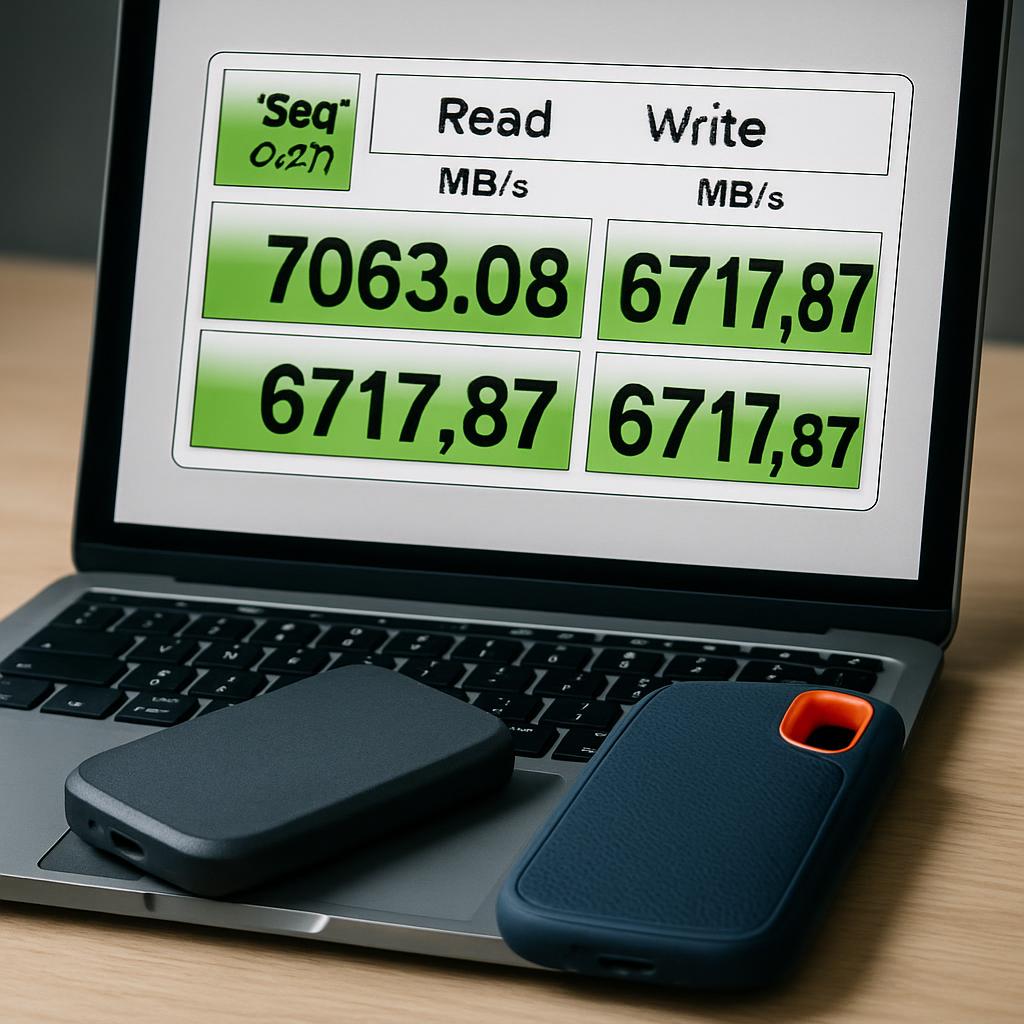
How do the top portable SSDs for laptops compare in 2026?
Here’s a side-by-side of seven currently-sold portable SSDs, spanning budget 10Gbps drives to a Thunderbolt 5 flagship. Prices are approximate ranges that fluctuate with sales and capacity — always confirm the current price and the exact capacity you want before buying. Speeds are manufacturer-claimed maximums; expect somewhat lower in real use.
| Model | Approx. Price (USD) | Interface | Rated Speed (R/W) | Durability / Warranty | Best for |
|---|---|---|---|---|---|
| Crucial X9 (1–4TB) | ~$80–240 | USB 3.2 Gen 2 (10Gbps) | Up to 1,050 MB/s | IP55, 7.5 ft drop / 3-yr | Budget everyday storage |
| Crucial X9 Pro (1–4TB) | ~$80–240 | USB 3.2 Gen 2 (10Gbps) | Up to 1,050 MB/s | IP55, 7.5 ft drop / 5-yr | Smallest/lightest 10Gbps |
| Samsung T7 Shield (1–4TB) | ~$110–930 | USB 3.2 Gen 2 (10Gbps) | Up to 1,050/1,000 MB/s | IP65, 9.8 ft drop / 3-yr | Rugged field work |
| Crucial X10 Pro (1–4TB) | ~$108–260 | USB 3.2 Gen 2×2 (20Gbps) | Up to 2,100/2,000 MB/s | IP55, 7.5 ft drop / 5-yr | Best value 20Gbps |
| Samsung T9 (1–4TB) | ~$250–1,145 | USB 3.2 Gen 2×2 (20Gbps) | Up to 2,000/2,000 MB/s | 9 ft drop / 5-yr | Brand-loyal pro buyers |
| SanDisk Extreme Pro V2 (1–2TB) | ~$280–500 | USB 3.2 Gen 2×2 (20Gbps) | Up to 2,000/2,000 MB/s | IP55, ~9.8 ft drop / 5-yr | Rugged 20Gbps creators |
| LaCie Rugged SSD Pro5 (2–4TB) | ~$399–599 | Thunderbolt 5 | Up to 6,700/5,300 MB/s | IP68, 3 m drop / 5-yr | TB5 Macs, 8K video |
A few honest tradeoffs behind the table. The Crucial X9 Pro is genuinely tiny and light — StorageReview measured it at just 56 x 50 mm and 1.34 oz — but its 10Gbps interface caps it at 1,050 MB/s, so it’s not for 20Gbps power users. The Samsung T9 is fast and warranty-backed for five years, but it runs expensive and its premium coating is a known dust magnet; one reviewer bluntly called it a dirt magnet. The LaCie Pro5 is the fastest drive here by far, but it’s finicky: on older Thunderbolt 4 hardware, the LaCie drive wasn’t recognized at all in one test until the reviewer switched to a native USB4/TB5 machine.
Note that pricing on these drives swings widely with sales. The Crucial X9 Pro 2TB, for instance, has an MSRP list price of $179 with prices steadily fluctuating between $119 and $155. If you’re flexible on timing, waiting for a major sale event can shave 20–30% off, so it pays to watch the price before committing.
How do you choose the right portable SSD without overpaying?
Choose by working through five questions in order: your fastest port, your sustained-write needs, capacity, ruggedness, and budget. Following this sequence prevents the most common mistake — paying for a 20Gbps or Thunderbolt drive your laptop can’t fully use. Here’s the step-by-step checklist.
- 1. Identify your fastest port. Check whether your laptop has USB 3.2 Gen 2 (10Gbps), Gen 2×2 (20Gbps), or Thunderbolt 4/5. If you’re on any Mac, assume 10Gbps for USB 3.2 drives and only consider Thunderbolt for higher speed.
- 2. Match the drive interface to that port. No 20Gbps drive if you only have 10Gbps. No TB5 drive unless you have a TB5 machine. A mismatch wastes money with zero speed benefit.
- 3. Estimate your biggest single transfer. If you regularly move 100GB+ at once, prioritize sustained-write performance and a larger cache over peak headline speed.
- 4. Size up, not down. 2TB usually offers better price-per-GB and steadier performance than 1TB. Buy ahead of your needs.
- 5. Add ruggedness only if you need it. An IP65/IP68 rating and drop protection matter for field and travel use; for a drive that lives in a bag at a desk, you can skip the premium.
Common mistakes and the fix for each: Buying speed your port can’t use — fix by confirming the port first (the single most expensive error). Using a USB-A adapter and wondering why it’s slow — fix by using a USB-C-to-C cable on a Gen 2 port, since best speeds require it. Treating the SSD as your only backup — fix with the 3-2-1 rule: keep your data in at least two places. Reformatting after loading files — fix by reformatting to NTFS or APFS first, because it erases everything. Ignoring cache limits on huge transfers — fix by choosing a drive with a larger SLC cache for video work.
One more cost-saving tip: don’t overlook last-gen drives. A 10Gbps X9 Pro on sale often delivers the same real-world experience as a pricier 20Gbps drive for most laptop users, especially on Macs where the faster interface can’t be used anyway. The “Pro” or “newest” label isn’t always worth the premium for your specific setup.
Bottom line: which portable SSD should you buy?
For most laptop owners in 2026, the right pick comes down to your port and your budget — and you rarely need the most expensive drive. If you have a mainstream Windows laptop or any Mac with a standard USB-C port, a 10Gbps drive like the Crucial X9 Pro or Samsung T7 Shield gives you ~1,050 MB/s real-world speed for the least money, and the X9 Pro adds a 5-year warranty in the smallest body in its class. If you shoot or work outdoors, the rugged, IP65-rated T7 Shield is the safer field companion thanks to its drop and dust protection.
If you’re a creator with a confirmed USB 3.2 Gen 2×2 port, the Crucial X10 Pro is the value choice at roughly 2,000 MB/s, with the Samsung T9 and SanDisk Extreme Pro V2 as fast (if pricier) alternatives — choose the T9 for warranty and brand trust, or the SanDisk if you want a rugged 20Gbps drive and can accept its mixed reliability reputation. And if you own an M4 Pro/Max MacBook Pro with Thunderbolt 5 and edit 6K/8K video, the LaCie Rugged SSD Pro5 is in a league of its own, just be ready for its compatibility quirks and premium price.
Whatever you choose, verify the current price and exact capacity before buying — storage prices move week to week — confirm your laptop’s port so you don’t pay for speed you can’t use, and never rely on a single portable drive as your only copy of important files. Get those three things right and a portable SSD remains the best value laptop upgrade you can make this year.
Frequently Asked Questions
Top Picks to Check on Amazon
Ready to pick one up? The drives covered here — the Crucial X9, X9 Pro, and X10 Pro; Samsung T7 Shield and T9; SanDisk Extreme Pro V2; and the LaCie Rugged SSD Pro5 — are all currently sold at major retailers in 1TB through 4TB capacities. Use the comparison table above to match one to your port and budget, then check live pricing through the links below before you buy.
Disclosure: This post contains affiliate links. We may earn a commission at no extra cost to you.
