

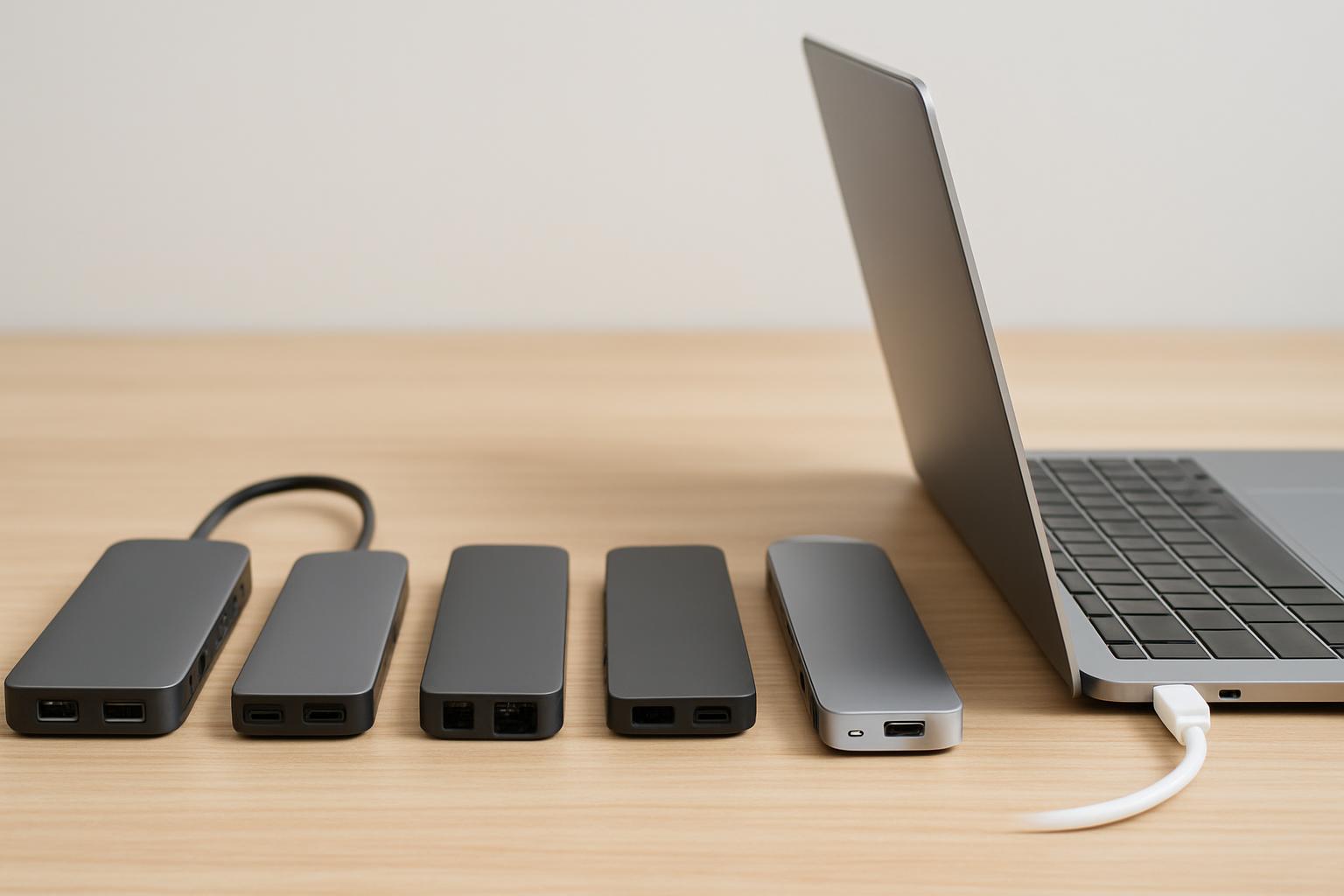

- Most modern thin-and-light laptops ship with only 2–3 USB-C ports, omitting HDMI, Ethernet, USB-A, and SD card slots.
- A USB-C hub or dock is the most practical way to restore full connectivity without replacing your laptop.
- Hubs are compact and portable; docks offer more ports and often include power delivery for desk setups.
- This guide evaluates seven currently available USB-C hubs and docks to help match the right option to your workflow.
The Thin-Laptop Port Problem in 2026 (and the Fix)
If you bought a thin-and-light laptop in the last couple of years — a MacBook Air, an XPS 13, a Surface, or any ultrabook — you’ve almost certainly run into the same wall: two or three USB-C ports and nothing else. No full-size HDMI, no Ethernet jack, no SD card reader, and definitely no USB-A for that mouse dongle or old external drive. As one tech outlet put it, laptops keep getting more portable, but laptops are becoming increasingly powerful, more portable, and more accessible, but one department that suffers as computers get smaller is port availability. A USB-C hub or dock is the practical fix, turning a single port into a full workstation’s worth of connections.
This guide compares seven real, currently-sold USB-C hubs and docks across three price tiers — roughly $30 portable hubs, $65–150 mid-range options, and $350–400 Thunderbolt docks — so you can match the right device to your actual needs and budget. The single biggest mistake buyers make is overspending on a 14-port Thunderbolt dock when a $30 travel hub would have done the job, or underspending on a cheap hub when they genuinely need dual 4K monitors and 140W charging. The difference between those two outcomes is a 10x price swing, so getting it right matters.
Throughout, prices are quoted as approximate ranges because USB-C accessory pricing moves constantly with sales, and specs are tied to each exact model’s official listing. Before you buy, always confirm the current price and double-check that your specific laptop supports the features you’re paying for — particularly DisplayPort Alt Mode for video out and Power Delivery for pass-through charging. Many “it doesn’t work” reviews are really compatibility mismatches, not defective hardware. Let’s break down what actually matters.
What should you look for in a USB-C hub for a thin laptop?
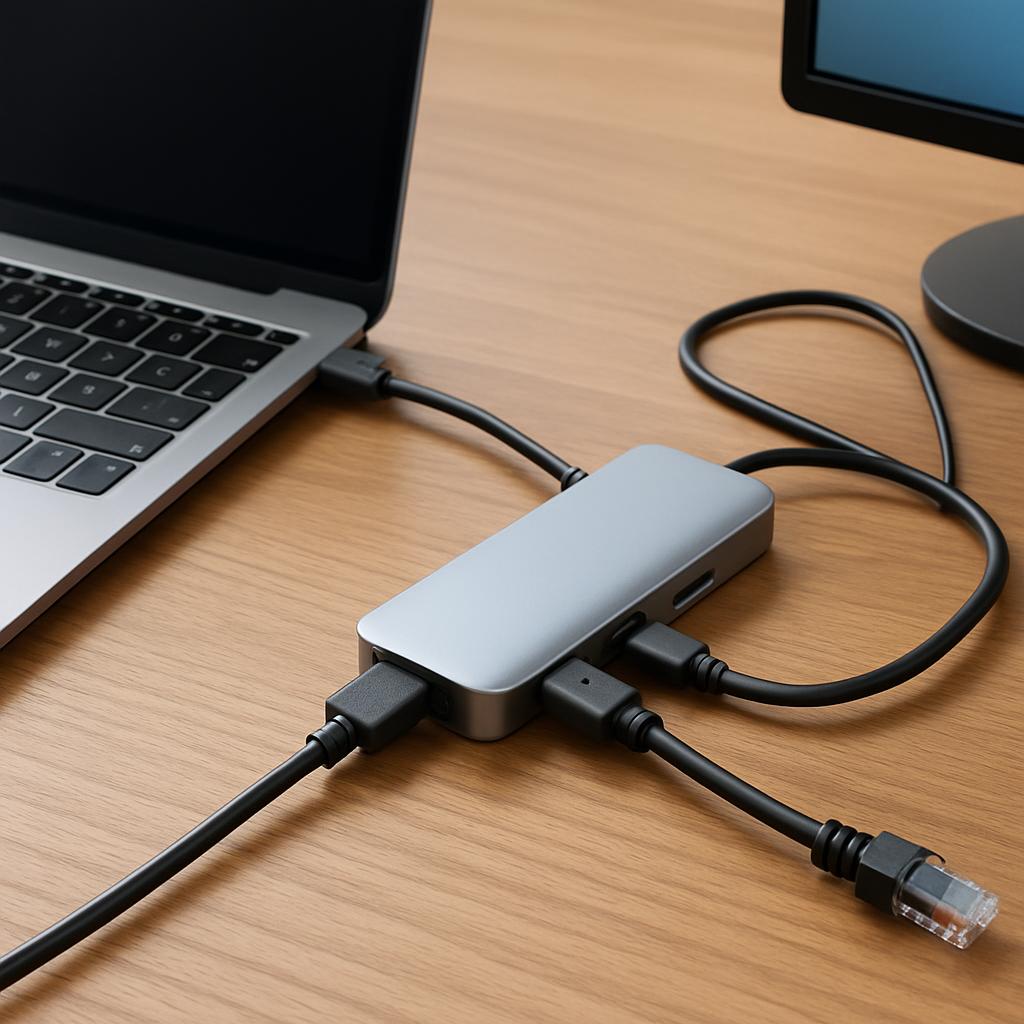
The five specs that matter most are: pass-through charging wattage, display output (resolution and number of monitors), data speed (5Gbps vs 10Gbps vs 40Gbps), the exact port mix you need, and whether the device is bus-powered or needs its own AC adapter. Nail those five and you’ll avoid almost every common buying regret. Everything else — RGB lighting, aluminum finish, cable length — is secondary.
Pass-through charging is the spec people underestimate most. A hub draws some power to run itself, so the wattage reaching your laptop is always lower than the rated input. The Anker 555, for example, supports up to 100W (minus 15W for operation) pass-through charging, meaning a 100W charger nets you about 85W. That’s plenty for a MacBook Air or most ultrabooks, but a 16-inch MacBook Pro or a gaming laptop wants more. Note too that on basic hubs, all the USB ports — aside from the one USB-C port supporting 100W PD — are designed to be data-only ports, so you can’t charge phones from just any port.
Display output: the spec that trips up the most buyers
Here’s the critical caveat almost nobody mentions upfront: a single-cable USB-C hub can only output video if your laptop’s USB-C port supports DisplayPort Alt Mode. The Anker 555 is compatible with laptops whose USB-C port can support Power Delivery and DisplayPort Alt Mode, and the same requirement applies to the UGREEN and Satechi hubs. Worse, most single-cable hubs drive only one external monitor over HDMI; the Anker 555 supports display output only through its HDMI port. The USB-C ports do not support video output and cannot be used to connect a monitor. If you need two extended displays, you generally need a Thunderbolt dock or a DisplayLink-based unit.
Data speed and the real-world difference
USB-A and USB-C data ports come in 5Gbps and 10Gbps flavors, and Thunderbolt jumps to 40Gbps. For a keyboard, mouse, or webcam, 5Gbps is irrelevant — they barely use it. The 10Gbps spec matters if you regularly move large files off external SSDs; UGREEN claims its 10Gbps ports let you move a 20GB file in just over 16.4 seconds. Thunderbolt’s 40Gbps only pays off for NVMe storage arrays, multiple 4K displays, or daisy-chaining. If you don’t have those needs, paying a Thunderbolt premium buys you headroom you’ll never touch.
Which hub or dock is best for your specific use case?
Match the device to your scenario: travelers and light users want a sub-$50 portable hub; home-office workers with one monitor want a mid-range 9-in-1; and creative pros running dual high-res displays with heavy storage want a Thunderbolt dock. Spending more than your use case requires is the most common — and most expensive — mistake in this category.
For frequent travelers and students, a compact bus-powered hub is ideal because it slips into a bag and needs no wall adapter. The Anker 555 fits this perfectly: at only 0.6 inches thick and weighing just 4.4 oz, it fits easily into your bag for effortless portability. It still delivers a genuinely useful port set — 2 USB-A data ports (10 Gbps), 1 USB-C data port (10 Gbps), 1 USB-C PD-IN port (85W max), 1 HDMI port (4K@60Hz), 1 Ethernet port plus SD and microSD slots. The UGREEN Revodok Pro 109 is a similar 9-in-1 option, and reviewers found it has the best port selection of any one I’ve tested in its class.
For permanent desk setups with a single monitor, a slightly larger powered hub or a mid-tier dock is the sweet spot. For demanding professional workflows, though, only a Thunderbolt dock delivers. The CalDigit TS4 is the connectivity champion — it offers a staggering 18 ports of connectivity, provides up to 98W power delivery, and supports resolutions up to 8K when connecting a single monitor. Reviewers describe it as easily the best Thunderbolt docking station we’ve used thus far – providing, of course, you can meet its high price tag. If your laptop and budget are newer still, the Anker Prime TB5 brings Thunderbolt 5 and is available from Anker directly, priced at $399.99.
What do real-world reviews and specs actually show?
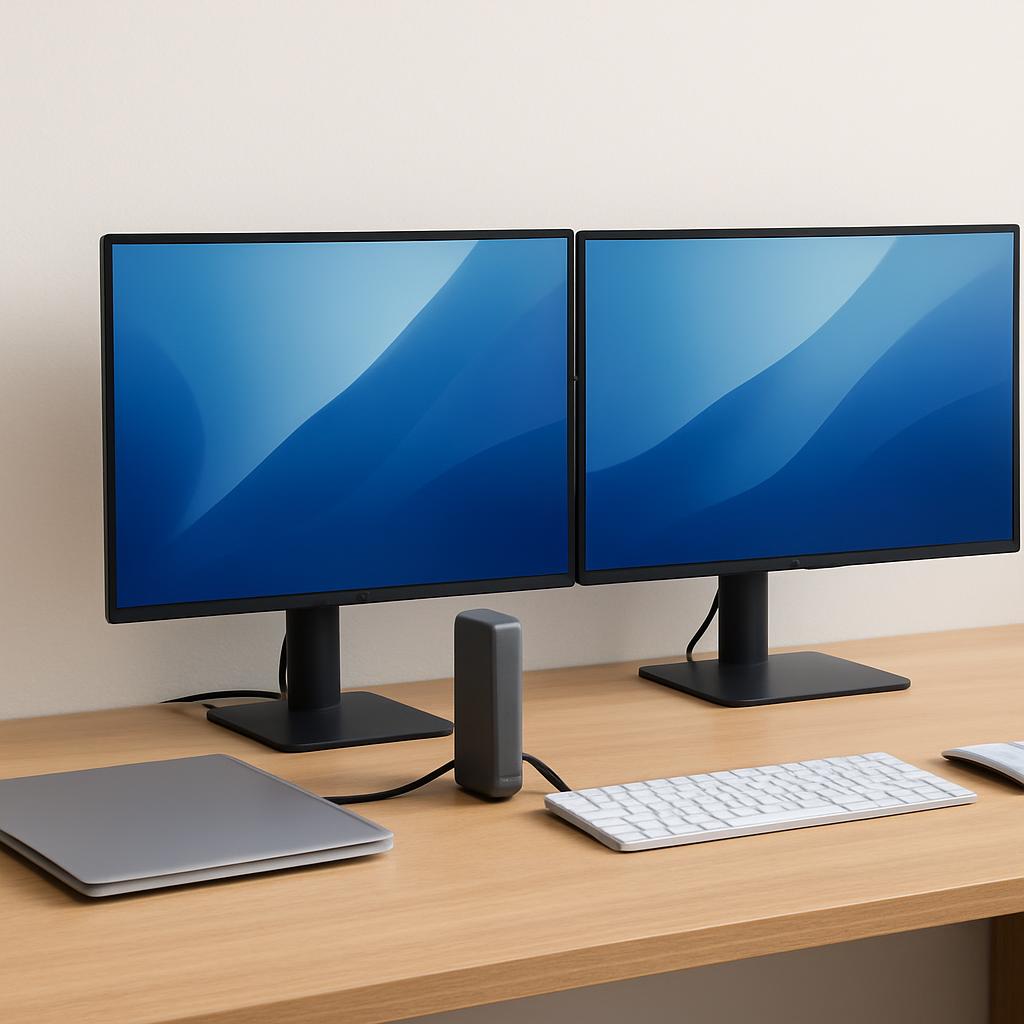
Reviews consistently show that the cheap portable hubs punch above their price for everyday use, while Thunderbolt docks justify their cost only for genuinely demanding setups — and that nearly every device runs warm under load. That heat is normal physics, not a defect: the Anker 555, when fully loaded, may reach a surface temperature of around 149°F. However, this is normal for products of this kind.
On value, the budget picks earn their reputation. One 2026 review of the Anker 555 concluded it remains one of the most popular and best-value USB-C hubs in 2026, with fast 10Gbps ports, true 4K@60Hz HDMI, 85W charging, Ethernet and card readers – all for around $35–50. The honest tradeoff is display count — that same review noted the downside is that you get only one display via HDMI; for dual monitors look at higher-end models. The UGREEN Revodok Pro 109 carries similar caveats: its Ethernet port might not work properly right out of the box without first installing drivers, a minor but real annoyance.
At the premium end, the picture is more nuanced. The Anker Prime TB5 was faultless during testing over several weeks, but multi-monitor behavior depends heavily on your laptop, and triple-display support is rare — Anker’s own testing found that very few laptops are capable of supporting triple display with this dock; only the Razer Blade 18 with NVIDIA GeForce RTX 4090 successfully supported it. The cheaper Anker Prime 14-port dock has a notable Mac limitation: on a Mac connected via this dock, the two HDMI ports show the same image as each other — Mac users get one extended desktop mirrored across two monitors, not the two separate workspaces Windows users get. This is an Apple Silicon limitation, not a flaw Anker can patch, and it’s the single most important thing for Mac buyers to understand before purchasing.
How do the top USB-C hubs and docks compare?
Here’s the at-a-glance comparison of seven verified, currently-sold options spanning every budget. Prices are approximate ranges that change frequently with sales — always confirm the current price before buying, and check each spec against your exact laptop model.
| Model | Approx. Price (USD) | Key Specs That Matter | Best For |
|---|---|---|---|
| Anker 555 USB-C Hub (8-in-1) | ~$35–55 | 85W PD pass-through; 4K@60Hz HDMI (single display); 10Gbps ports; 1GbE; SD/microSD | Best overall value for travel |
| UGREEN Revodok Pro 109 (9-in-1) | ~$30–70 | 85W PD pass-through (100W PD port); 4K@60Hz HDMI; 10Gbps + 5Gbps ports; 1GbE; SD/TF | Budget desk setups, most ports |
| Satechi Type-C Multi-Port Adapter V2 | ~$60–80 | 60W PD pass-through; 4K@60Hz HDMI; 3x USB-A (5Gbps); 1GbE; SD/microSD | Mac aesthetic, USB-A-heavy users |
| OWC Thunderbolt Hub (4x TB4 + USB-A) | ~$129–149 | 60W charging; 3 usable TB4 ports + 1 USB-A (10Gbps); single 8K or dual 4K display | Adding more Thunderbolt ports |
| Anker Prime Dock (14-port, dual HDMI) | ~$160–190 | 160W total / up to 100W to laptop; dual HDMI (Windows extended, Mac mirrors); 14 ports | Windows dual-monitor offices |
| CalDigit TS4 (18-port TB4) | ~$360–400 | 98W PD; 18 ports; 2.5GbE; single 8K or dual 6K (Mac); UHS-II card slots | Max connectivity for pros |
| Anker Prime TB5 Dock (14-in-1) | ~$399 | 140W max PD; Thunderbolt 5 (120Gbps max); 2.5GbE; up to 8K; active cooling | Future-proof TB5 power users |
A few honest pros and cons. The Anker 555‘s strength is unbeatable value; its limit is single-display-only output. The UGREEN Revodok Pro 109 packs the most ports for the money, but its Ethernet may need a driver install. The Satechi V2 offers a clean three-USB-A layout, but its USB-C pass-through charging is limited to 60W and its USB-A ports run up to 5 Gbps, slower than the 10Gbps rivals. The OWC Thunderbolt Hub uniquely adds real Thunderbolt ports, but nets you only two extra (one port connects to the host) and tops out at 60W charging. The CalDigit TS4 has the most connectivity of any dock but is pricey, and the Anker Prime TB5 is the most future-proof yet expensive.
How do you choose the right one? A step-by-step checklist
Choose by working through five questions in order — laptop port type, charging needs, monitor count, port mix, and budget ceiling. Answering them in sequence eliminates the wrong options before you ever look at price, which is how you avoid both overspending and buyer’s remorse.
Step 1 — Check your port. Confirm whether your laptop has plain USB-C, USB4, or full Thunderbolt 4/5, and verify it supports DisplayPort Alt Mode and Power Delivery. A Thunderbolt dock connected to a non-Thunderbolt USB-C laptop will work but with reduced capability — CalDigit notes that on such hosts performance will be capped at the capability of the host interface. Step 2 — Size your charging. Match wattage to your machine: a MacBook Air or ultrabook is happy with 60–85W; a 16-inch MacBook Pro or gaming laptop wants 100W+. Remember that gaming laptops can be fussy — Anker warns that some gaming laptops require at least a 100W power supply (20V/5A) to charge.
Step 3 — Count your monitors. One HDMI display? Any hub in the table works. Two extended displays? You need Thunderbolt, or DisplayLink, and if you’re on a Mac, re-read the dual-monitor caveats above carefully. Step 4 — List your must-have ports. Need an SD reader for a camera? Need 2.5GbE for a fast NAS — a feature the TS4 pioneered as the fastest ethernet port on a Thunderbolt 4 dock, 2.5X faster than standard Gigabit Ethernet? Write your list before shopping. Step 5 — Set a budget ceiling and buy the simplest device that clears steps 1–4.
Three common mistakes and their fixes: (1) Buying Thunderbolt for a non-Thunderbolt laptop — fix: verify your port first, because you’ll pay for speed you can’t access. (2) Expecting dual extended monitors from a cheap hub — fix: budget for a Thunderbolt dock or DisplayLink unit if two workspaces matter. (3) Ignoring the self-powered vs bus-powered distinction — fix: remember that most docks need their own AC adapter, as most Thunderbolt docks require external power to operate because they need to supply enough energy to power connected devices, charge your laptop, and run multiple high-speed ports simultaneously. A travel hub that needs no brick is a different tool than a desk dock that does.
Frequently Asked Questions
Top Picks to Check on Amazon
If you’re ready to pick, here’s how the field maps to common shoppers. Browse current listings to confirm live pricing — the budget hubs in particular swing in and out of sale frequently, and several of these have dropped to record lows during 2026 sale events.
Bottom Line: Who Should Buy Which
For most people with a thin laptop and modest needs, the Anker 555 or UGREEN Revodok Pro 109 is the right call — both deliver 4K@60Hz HDMI, 10Gbps data, Ethernet, card readers, and ~85W charging for around $30–70, which covers the vast majority of single-monitor home and travel setups. If you lean heavily on legacy USB-A peripherals and want a Mac-matching aesthetic, the Satechi V2 is a reasonable alternative, with the understanding that its charging tops out at 60W and its data ports are slower.
If you’re a creative professional or power user running multiple high-resolution displays, fast storage, and wired networking, step up to a Thunderbolt dock. The CalDigit TS4 remains the connectivity king for those who need 18 ports and 2.5GbE, while the Anker Prime TB5 is the choice if you have a Thunderbolt 5 laptop and want maximum future-proofing and 140W charging. Windows users wanting affordable dual monitors should look at the Anker Prime 14-port dock around $160–190 — but Mac users should skip it for dual extended displays due to the HDMI mirroring limitation. And if your only goal is simply more Thunderbolt ports rather than a full port buffet, the OWC Thunderbolt Hub does exactly that.
One last reminder: prices and availability in this category change constantly, and the right pick depends entirely on your specific laptop’s capabilities. Before you check out, confirm the current price at your retailer, verify your laptop supports DisplayPort Alt Mode and the charging wattage you expect, and — for anything Thunderbolt — make sure your host port actually delivers Thunderbolt rather than plain USB-C. Get those confirmations right and any of these seven devices will serve you well for years. Match the tool to the task, don’t overspend on ports you’ll never use, and your thin laptop will finally feel like the full workstation it was always meant to be.
Disclosure: This post contains affiliate links. We may earn a commission at no extra cost to you.
